Recently, I had the privilege to work on a project where the UI/UX of the mobile app was very important, allowing me to explore multiple effects that make boring apps turn into amazing user experiences. And, while most of the time this is not possible because development teams struggle to ship features as fast as possible, I want to show you 3 easy techniques that any mobile app can leverage to enhance the user experience without ruining the project roadmap.
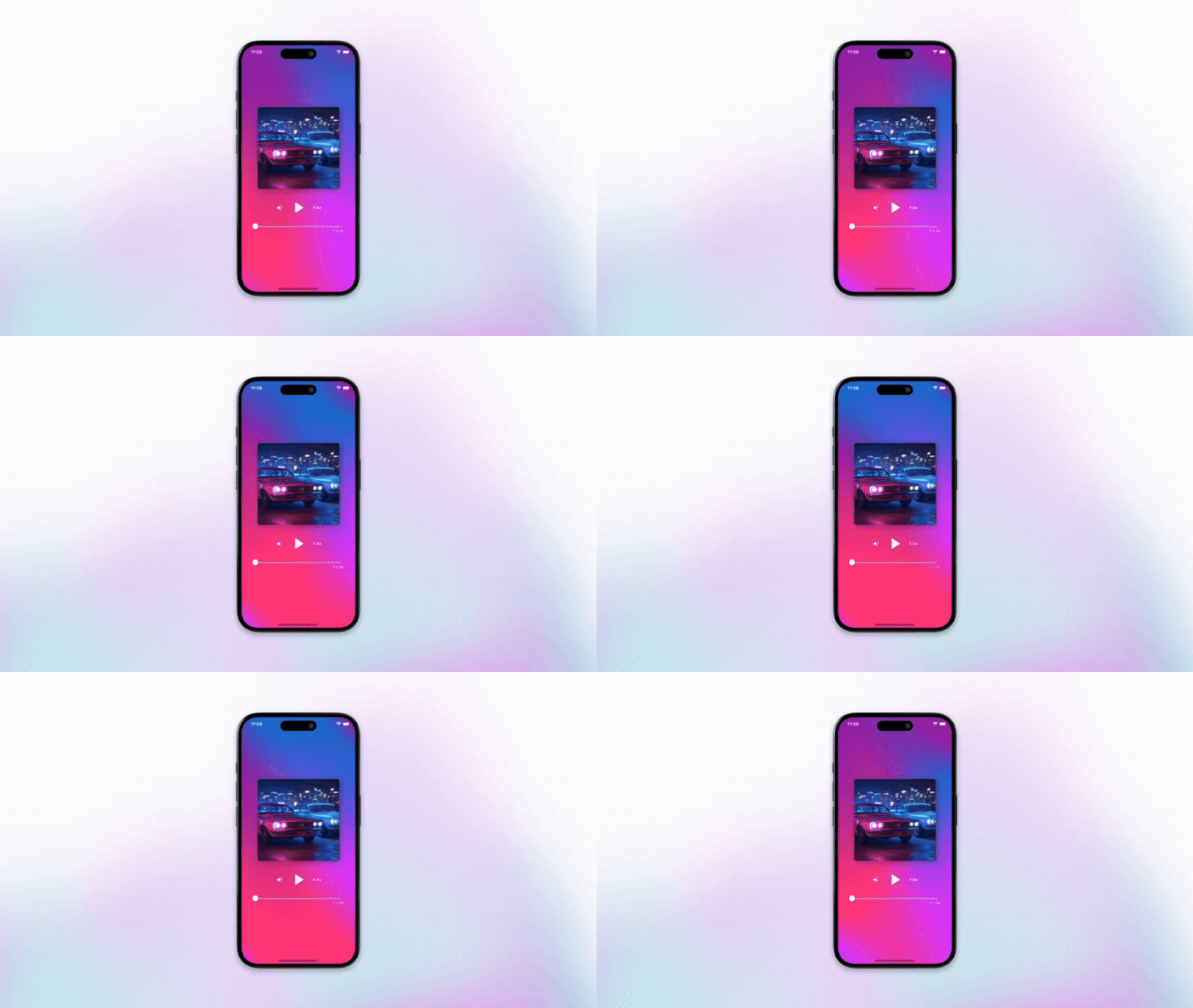
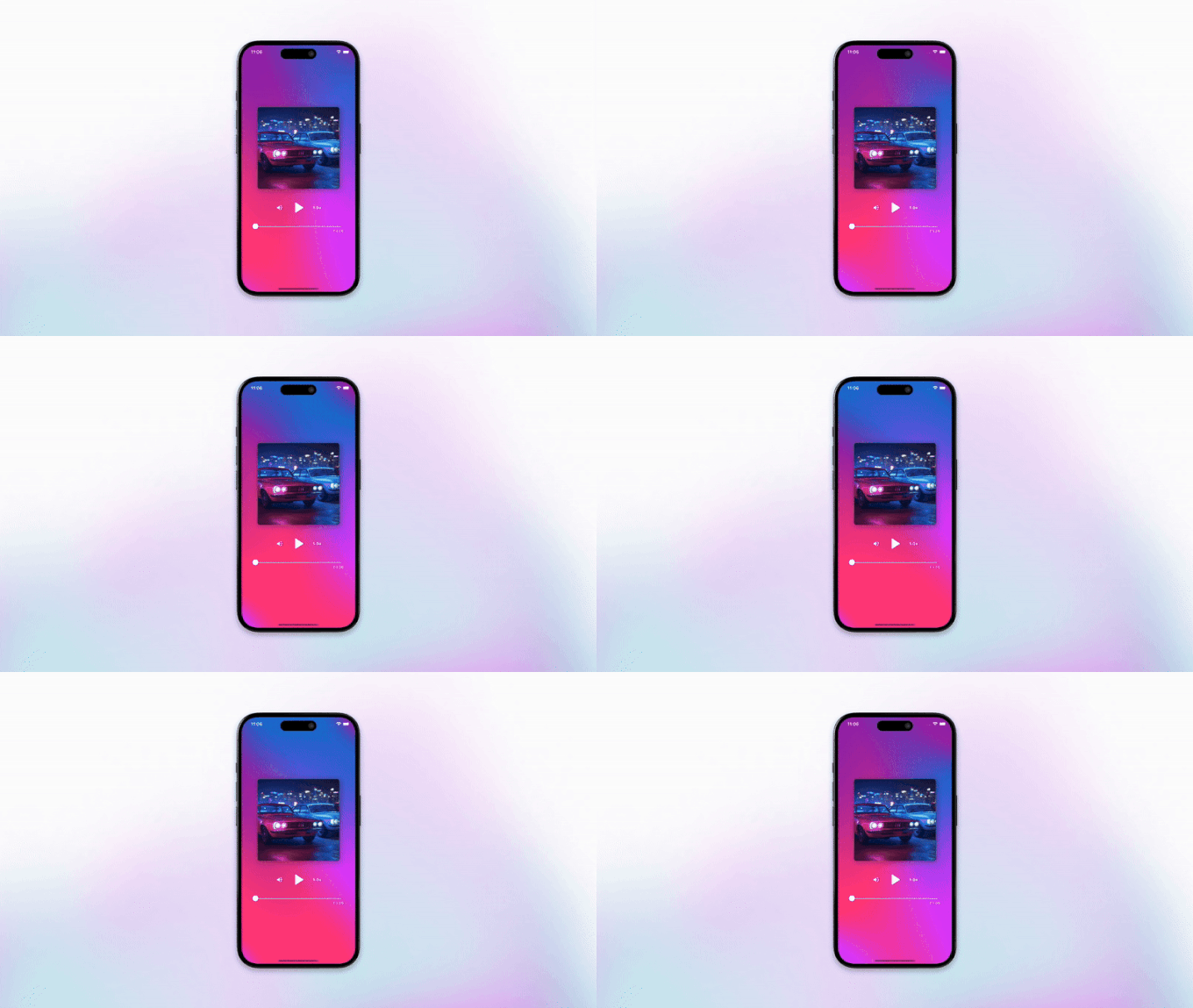
To do that, I will use a sample project of a music player. You can find the source code here.
This blog post is meant to be highly practical. So, if you want a more theoretical background on shaders, I recommend watching this video. That said, to kick off our implementation guide, you can think of shaders as a program that runs on the device GPU to determine the color of each pixel on the screen. These programs are written using the GLSL (Open GL Shading Language) which, at the end of the day, allows you to create amazing UI effects.
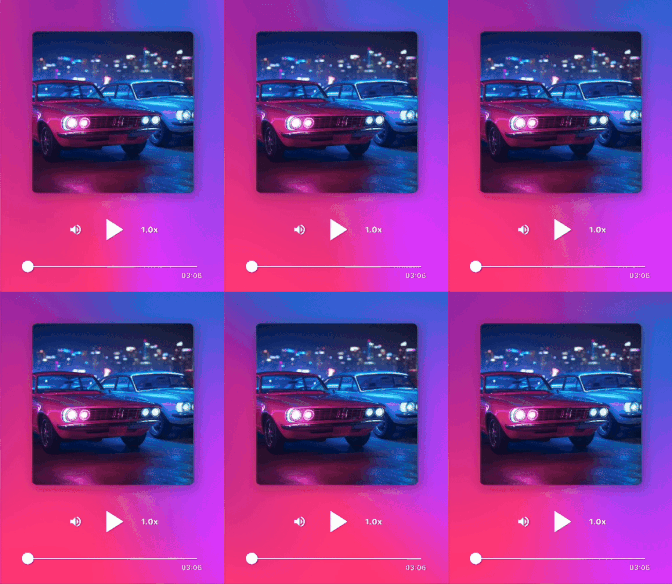
In our sample, we use shaders to create a dynamic background. Let’s dig into the steps needed to do that.
To add the shader to your Flutter project, create a shaders folder inside your assets folder. Then, create a player_background.frag file and add this content to it.
Note: This shader was copied from the Flutter Shaders website. You can find it here and check other examples. If you are interested in more use cases and details, I suggest you watch this talk. Finally, if you want to see community shaders, shadertoy is the place to go, and you can always use an LLM to help customizing shaders or adapt them to work in Flutter.
Now that you have your shader, you must include it inside the pubspec.yaml file so it can be compiled.
flutter:
  shaders:
    - assets/shaders/player_background.frag
To use our shader you mainly need a code similar to the one below.
If you want to jump directly into the full source code of the widget that renders the dynamic background, you can find it here.
ShaderBuilder(
  assetKey: 'assets/shaders/player_background.frag',
  (context, shader, child) {
    _setShaderSize(shader, context);
    _setShaderColors(shader);
    return AnimatedBuilder(
      animation: _controller,
      builder: (context, child) {
        _setShaderTime(shader, _startTime);
        return CustomPaint(painter: ShaderPainter(shader));
      },
    );
  },
);
Let’s try to break it down!
ShaderBuilder:
There are multiple ways to load our shader but the simplest one is to use the flutter_shaders package.
Install it $ flutter pub add flutter_shadders and use the ShaderBuilder widget that will take care of loading the shader asynchronously.
Once the shader is loaded, we need a way to apply it to render our background. To do this, create a CustomPainter that will be used by the CustomPaint widget to render our shader.
Custom Painter:
To create our custom painter, create a shader_painter.dart file with the content below.
import 'dart:ui';

import 'package:flutter/widgets.dart';

class ShaderPainter extends CustomPainter {
  final FragmentShader shader;

  const ShaderPainter(this.shader);

  @override
  void paint(Canvas canvas, Size size) {
    canvas.drawRect(
      Rect.fromLTWH(0, 0, size.width, size.height),
      Paint()..shader = shader,
    );
  }

  @override
  bool shouldRepaint(covariant CustomPainter oldDelegate) =>
      oldDelegate != this;
}
In our use case, the painter draws a rectangle on the canvas using the defined width and height, while the shader code determines the color of each pixel.
Finally, we need to pass multiple parameters for our shader to work.
Shader Variables:
If you looked into the player_background.frag code, you may have noticed, other than the complex math, some variables.
// Inputs
uniform float uTime;
uniform vec2 uResolution;
uniform vec3 uColorPrimary;
uniform vec3 uColorSecondary;
uniform vec3 colorAccent1;
uniform vec3 colorAccent2;
// Outputs
out vec4 fragColor;
These uniform variables are set from outside the shader (in our case, the Flutter code) while the out variable defines the final color output of the shader that will be used to paint our screen.
So, how do we set these inputs? The FragmentShader has a function called setFloat that allows you to do this. This function receives the index of the parameter and the corresponding value to set.
Let’s start by looking into the uResolution variable.
void _setShaderSize(FragmentShader shader, BuildContext context) {
  final size = MediaQuery.of(context).size;
  shader.setFloat(1, size.width);
  shader.setFloat(2, size.height);
}
In our code, we have a _setShaderSize function that retrieves the screen size and assigns its width and height to the indices 1 and 2 of the shader inputs, respectively (since the uTime float is at index 0 and the uResolution is a vector of length 2).
To set the colors that we want to render, we can do it similarly.
void _setShaderColors(FragmentShader shader) {
  _setShaderColorPrimary(shader);
  _setShaderColorSecondary(shader);
  _setShaderColorAccent1(shader);
  _setShaderColorAccent2(shader);
}

void _setShaderColorPrimary(FragmentShader shader) {
  shader.setFloat(3, Colors.blue.shade700.r);
  shader.setFloat(4, Colors.blue.shade700.g);
  shader.setFloat(5, Colors.blue.shade700.b);
}

void _setShaderColorSecondary(FragmentShader shader) {
  shader.setFloat(6, Colors.purple.r);
  shader.setFloat(7, Colors.purple.g);
  shader.setFloat(8, Colors.purple.b);
}

void _setShaderColorAccent1(FragmentShader shader) {
  shader.setFloat(9, Colors.purpleAccent.r);
  shader.setFloat(10, Colors.purpleAccent.g);
  shader.setFloat(11, Colors.purpleAccent.b);
}

void _setShaderColorAccent2(FragmentShader shader) {
  shader.setFloat(12, Colors.pinkAccent.r);
  shader.setFloat(13, Colors.pinkAccent.g);
  shader.setFloat(14, Colors.pinkAccent.b);
}
view raw
Finally, we also want to set the uTime variable. This is the input that will make our background move while the time passes. To do that we need an AnimatedBuilder that will run based on the defined animation controller.
_controller = AnimationController(
  duration: const Duration(seconds: 1),
  vsync: this,
)..repeat();
This animation controller will run repeatedly until the widget is disposed and will be synchronized with the screen refresh rate (for this, your state needs to implement the SingleTickerProviderStateMixin).
Now, every time the animation builds, we just need to set the uTimer variable for our background to move.
void _setShaderTime(FragmentShader shader, int startTime) =>
    shader.setFloat(0, _elapsedTimeInSeconds(startTime));

double _elapsedTimeInSeconds(int startTime) =>
    (DateTime.now().millisecondsSinceEpoch - startTime) / 1000;
And that’s it! You can now use this widget in your project to create a dynamic background. How cool is it? 😎
If you're building a mobile product and want to talk it through, or just want to argue with us about anything above, we're on LinkedIn and Instagram, or you can send us a message. Thanks for reading.