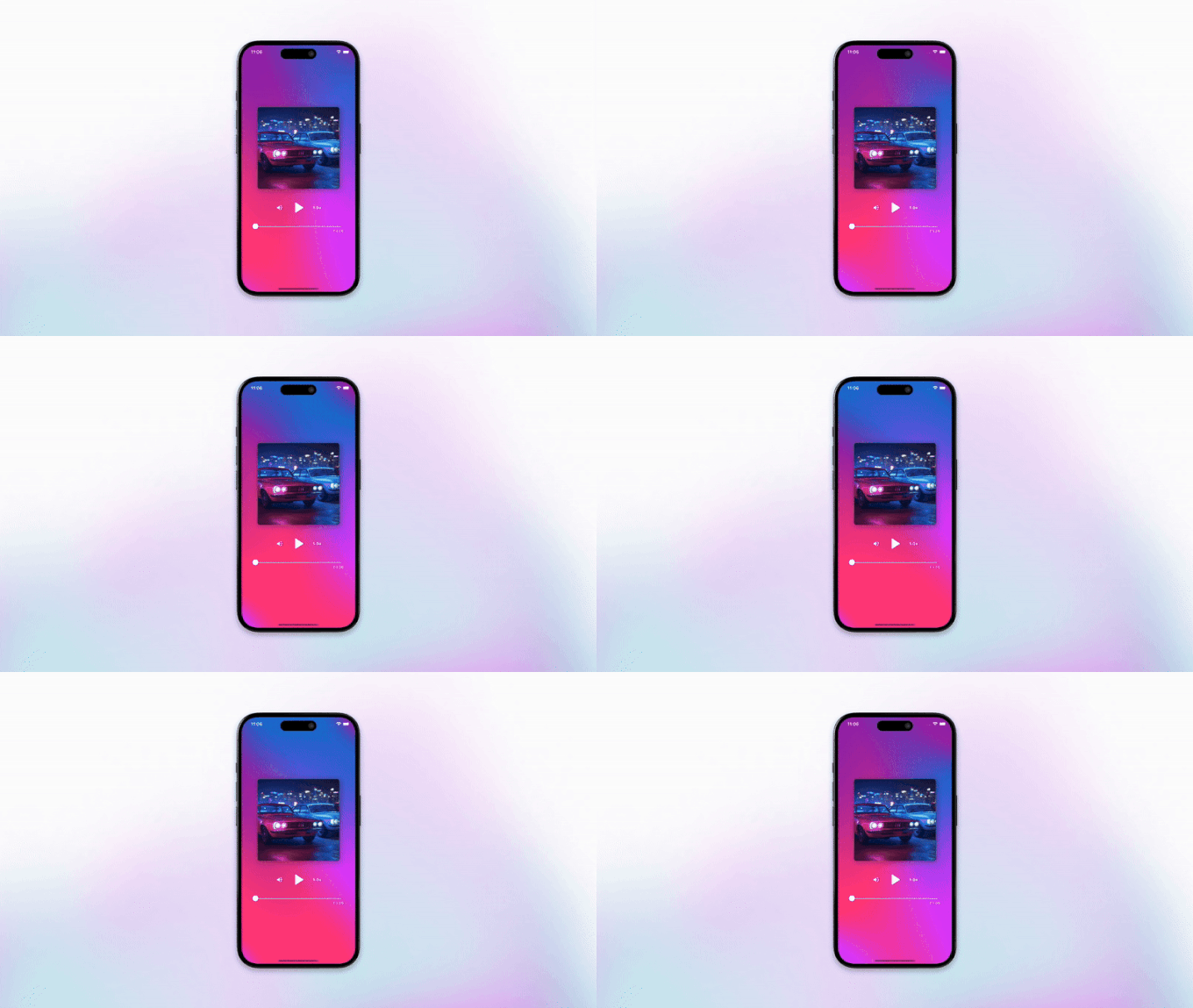
This blog post is the last one of a series where we will talk about the Hero animation in Flutter.

If you’ve used an app with a stunning UI, chances are you’ve seen an animation like the one created by the Hero widget.
In our use case, we want the music player users to view the audio cover in detail by tapping on it. To do this, we’ll start by creating a widget that displays the cover in full screen.
class FullScreenMusicCover extends StatelessWidget {
  const FullScreenMusicCover({super.key});

  @override
  Widget build(BuildContext context) => GestureDetector(
    onTap: () => Navigator.pop(context),
    child: BackdropFilter(
      filter: ImageFilter.blur(sigmaX: 5, sigmaY: 5),
      child: Scaffold(
        backgroundColor: Colors.black.withAlpha(150),
        body: Center(
          child: Hero(
            tag: Constants.coverPath,
            child: Image.asset(Constants.coverPath, fit: BoxFit.cover),
          ),
        ),
      ),
    ),
  );
}
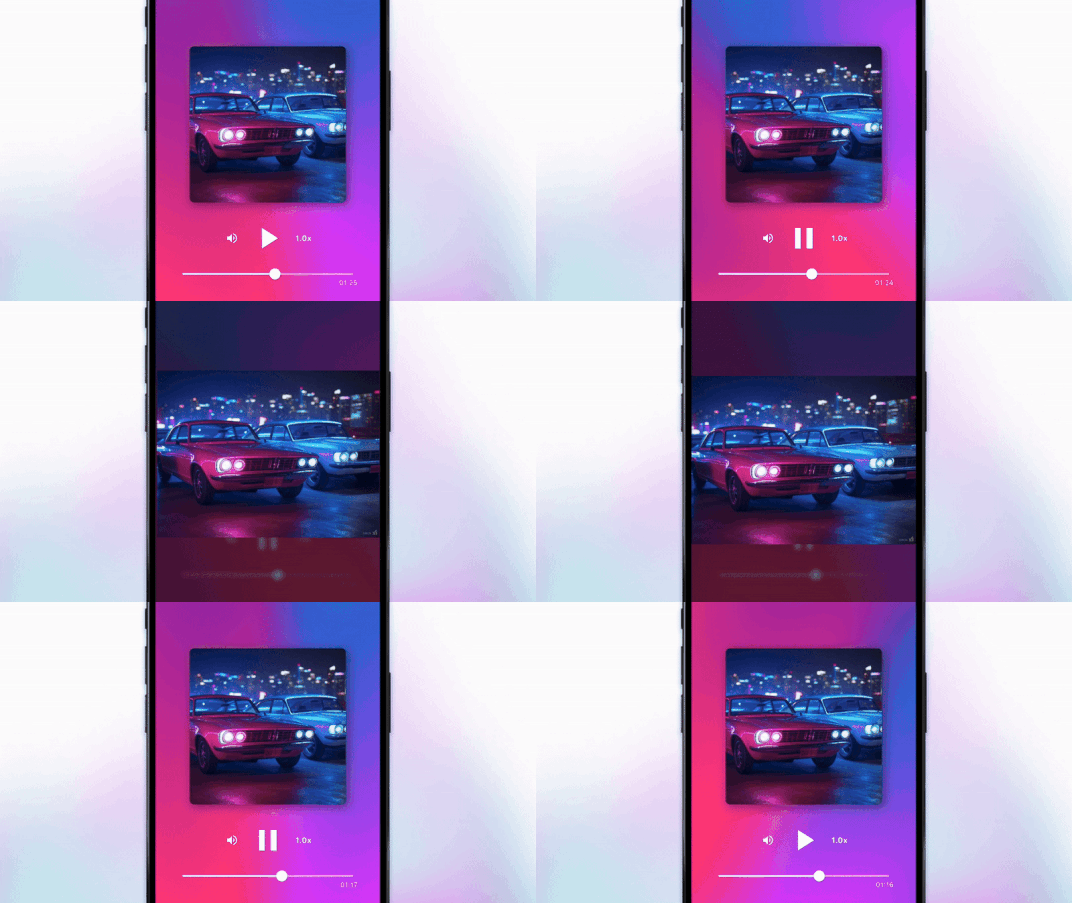
This widget is fairly simple. We draw the cover image in the center of the screen, add a semi-transparent black background to keep a hint of the previous screen visible, and apply a blur effect — because, well, it looks cool 😎. Moreover, when we tap on the screen, we navigate back.
As you might have noticed, our image is wrapped in a Hero widget. This will tell Flutter that when navigating to this screen, if there’s another Hero widget with the same tag, it should fly between the two screens. This is called a shared element animation.
Now, let’s update our code, where we use the cover image.
GestureDetector(
  onTap: _showCoverInFullScreen,
  child: Hero(
    tag: Constants.coverPath,
    child: MusicCover(),
  ),
);

void _showCoverInFullScreen() => Navigator.of(context).push(
  PageRouteBuilder(
    opaque: false,
    pageBuilder: (context, _, __) => FullScreenMusicCover(),
  ),
);
Again, this is quite simple. We just wrap our MusicCover widget in a Hero widget using the same tag as before, and navigate to the FullScreenMusicCover when the user taps it. That’s it! You now have a smooth and beautiful animation with almost no effort.
Check the full source code here.
Before ending this blog post, we have one more thing. If you tried out the music player app, you might have noticed a micro animation when the play/pause button switches states. This subtle animation is implemented using code similar to the example below
IconButton(
  iconSize: 64,
  icon: AnimatedIcon(
    icon: AnimatedIcons.play_pause,
    progress: _animationController,
    color: Colors.white,
  ),
  onPressed: () {
    widget.isPlaying
        ? _animationController.reverse()
        : _animationController.forward();
  },
);
You can look at the full source code here, but as you saw in the snippet above, you can easily create this morphing animation using AnimationController together with Flutter’s built-in animated icons. Simple, right?
That's it for this one. If you're building a mobile product and want to talk it through, or just want to argue with us about anything above, we're on LinkedIn and Instagram, or you can send us a message. Thanks for reading.