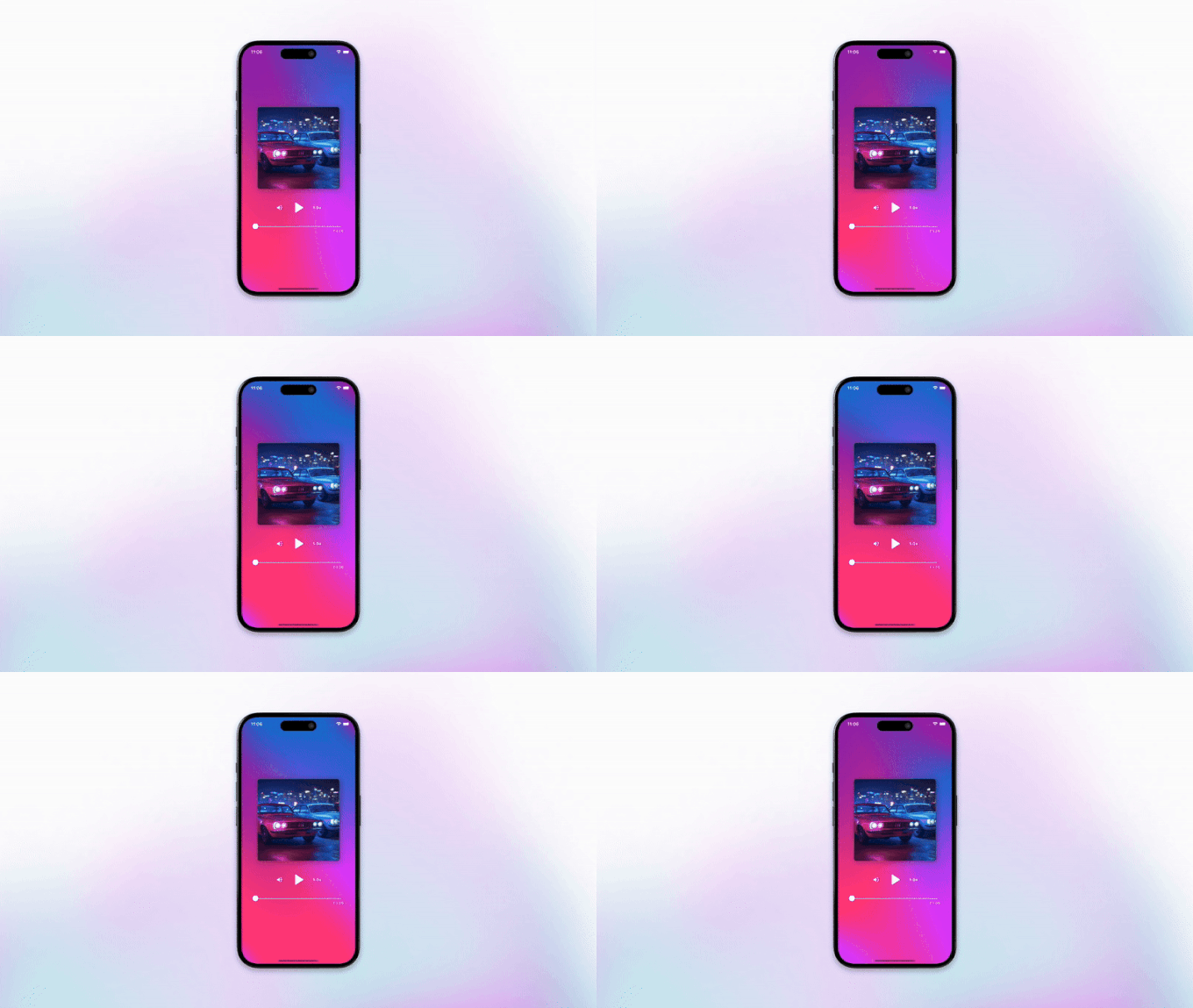
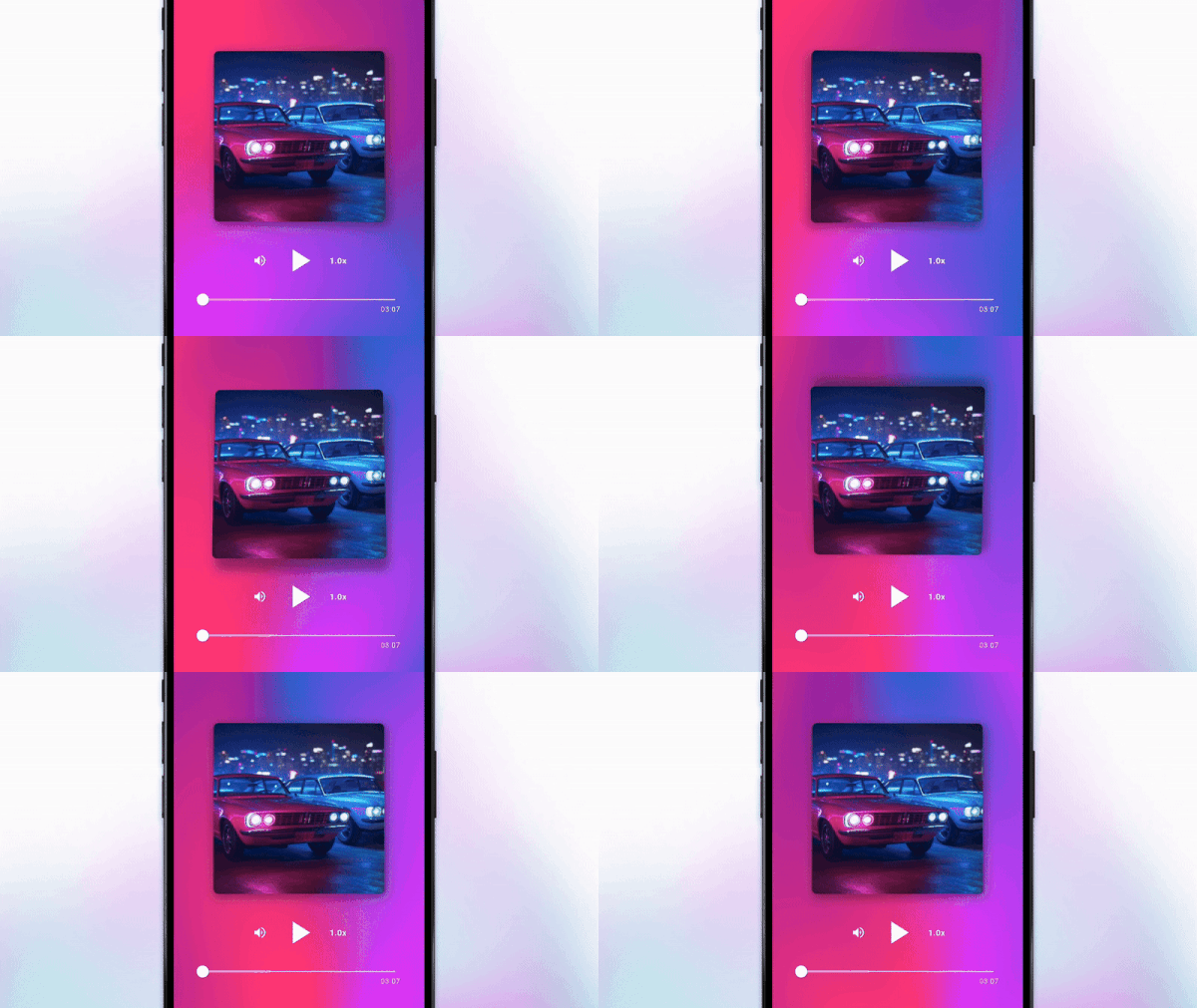
In this blog post, we’ll explore how to create a 3D effect in Flutter to elevate your app’s UI and enhance the user experience.
This is the second post in our series. If you missed our post on shaders, you can check it in our last blog post.
A transformation is a way to modify or animate a widget's appearance by changing its position, rotation, perspective, etc… To do this, we can use the Transform widget.
In our sample, we use it to generate a 3D animation on the music cover, leveraging the device’s gyroscope data to create a dynamic depth effect when the user rotates their phone. The full source code of the animated widget can be found here.

To get the device gyroscope data, you can use the sensors_plus package by installing it through the command line: $ flutter pub add sensors_plus.
final _gyroscopeStream = gyroscopeEventStream(
  samplingPeriod: SensorInterval.uiInterval,
);

_gyroscopeStream.listen((event) {
  setState(() {
    // Apply EMA Low-pass filter
    final x = _alpha * event.x + (1 - _alpha) * _xRotation;
    final y = _alpha * event.y + (1 - _alpha) * _yRotation;
    // Clamp values to stay within the max rotation range
    _xRotation = x.clamp(-_maxRotation, _maxRotation);
    _yRotation = y.clamp(-_maxRotation, _maxRotation);
  });
});
The gyroscope provides a stream of events that you can listen to at regular intervals. In our case, we use SensonInterval.uiInterval to capture gyroscope data for real-time UI updates.
Every time we receive an event, we need to update our state to store the x and y values that will be used to rotate our cover. But, we don’t store the raw values. Instead, we calculate our rotation by doing 2 things:
x and y rotation values to a maximum controlling the animation distance.Now that we have the x and y rotation values calculated based on the gyroscope data, it’s time to build our 3D animation.
The cover animation is composed of 3 things.
Rotation:
To create the 3D effect, we need the x and y state values. To easily use them, we can map those values into the cover’s horizontal and vertical rotation angles based on the device’s orientation. Similar to the code below.
final isPortrait = MediaQuery.of(context).orientation == Orientation.portrait;
final verticalRotation = isPortrait ? _xRotation : _yRotation;
final horizontalRotation = isPortrait ? _yRotation : _xRotation;
To explain it better, in 3D space, objects rotate around the X-axis and Y-axis. The easiest way to visualize this is to put a pen horizontally or vertically on your phone. When rotating around the X-axis, the object moves forward or backward. When rotating around the Y-axis, it moves left or right. In landscape mode, the axes are inverted to maintain the correct movement.
Image:
Now that we have our rotation angles, we can use a Transform widget to display and animate our cover image.
Transform(
  transform:
      Matrix4.identity()
        ..setEntry(3, 2, 0.001) // Perspective
        ..rotateX(verticalRotation)
        ..rotateY(horizontalRotation),
  alignment: Alignment.center,
  child: ClipRRect(
    borderRadius: BorderRadius.circular(8),
    child: Image.asset(
      "assets/images/cover.jpg",
      fit: BoxFit.cover,
      width: 280,
      height: 280,
    ),
  ),
);
This widget uses a Matrix4 where we set the cover perspective using the setEntry function and the vertical and horizontal rotation values using the rotateX and rotateY functions, respectively (remember the 3D space).
Shadow:
Finally, we want to draw a shadow that gives depth to our effect.
BoxShadow(
  color: Colors.black.withAlpha(90),
  spreadRadius: 2,
  blurRadius: 14,
  offset: Offset(
    4 + (horizontalRotation * _shadowOffsetMultiplier),
    4 - (verticalRotation * _shadowOffsetMultiplier),
  ),
),
The shadow is animated by updating the offset values of the BoxShadow. In our case, we defined a default offset of 4 to ensure our shadow is always visible. Then, for the horizontal offset, we sum the calculated horizontalRotation while in the vertical offset, we subtract the verticalRotation.
We do this because the shadow must move vertically in the opposite direction of the cover, mimicking the natural behavior of light. Both horizontalRotation and verticalRotation are multiplied to a _shadowOffsetMultiplier constant that allows us to control the elevation.
And that’s it! Stay tuned for Part III. If you’re interested in discussing mobile development or need help building a mobile product, we're on LinkedIn and Instagram, or you can send us a message. Thanks for reading.