
It's 2015, and git ships worktrees. But almost no one cares (me included)...
Fast forward to 2026, and suddenly everyone is talking about them. Curious, right? 🤔 If you ask me, building software is a bit like cooking, and some recipes just need to slow-cook for a while.
So, in this post, I invite you to join me on a little quest. We'll step into a busy restaurant kitchen to learn the processes and tools that will help us cook better than ever. And by cooking, I mean shipping code. 😎
That being said, every good recipe starts with knowing what you're cooking. So, let's start by defining our problem.

That’s me, a couple of months ago. I was cooking fast (even faster with AI), but I was only using one big pan!
Why is that a problem, you might ask? I want you to picture this. You're a chef, and you only have one pan. There's a beautiful risotto in it, half done. Suddenly, someone runs into the kitchen and shouts: "Quick! Make an omelette!"
What do you do?
Well, you have three options:
None of them sounds great, right?
The same thing happens to us, software engineers. Some of us only use git branches. The feature that we are working on is the risotto, half done, and then the “omelette” orders start coming in:
I think you got it. We have the same three options.
We can dump the code with a git reset --hard, for example. As before, this is typically a terrible idea, since we lose our work. We can finish our task first, which is sometimes ok, but if there's a production bug waiting, we're blocked. Or we can set our work aside. And this is where it gets painful: stash (or do a WIP commit), switch to main, pull, create a new branch, fix whatever needs fixing, switch back, and restore your changes. On a mobile project, add a Gradle sync, a long rebuild, or a pod install on top of that. Not fun! 😅
So, what if we could simply have more pans?

I have good news: we can! They're called git worktrees. 🎉
Before we start cooking, let me set one ground rule. For me, this is the most important idea in this whole post: Sequential work was never the problem. The cost of switching was.
Before I used worktrees, every dev I talked to who used them told me the same thing: worktrees are amazing for parallelising work. And my reaction was: no, thanks. 🙂 I've always thought I wasn't good at context switching. Every time I jumped between tasks, I'd lose focus, forget where I was, and spend the first few minutes just remembering what I was doing. Why would I want more of that?
But then, I tried them. And it turns out I wasn't that bad at context switching after all. My process was. 😅
So, for me, the goal of using worktrees is to reduce the mental overhead of switching around. Parallel work isn't the main goal, but it might be a nice consequence.
So, back to the question from the beginning. If worktrees have been around since 2015, and the problem always existed, why is everyone talking about them now?
There are multiple reasons. For years, most tools simply weren't prepared to handle worktrees, for example. But there's one thing that created the perfect storm. AI.
AI shifted the way our industry works and is perceived. We used to be decision makers and also executors. Now, we're becoming mainly decision makers, and we execute less (or should I say: nothing?). And, as models and tools evolve, this will only become a stronger reality.
Because of that, we delegate a lot of work to agents. And delegated work is asynchronous by definition. An agent takes time to research, to write code, to run tests... So, what do you do in the meantime? You can stare at it. Or you can start something else. But to start something else, you need a second place to work that doesn't step on the first one. In other words, you need more pans!
Instead of accepting this friction, we can rethink the way we work. Everyone is talking about how AI is reshaping the software development lifecycle (SDLC), but that also means our kitchen needs to change. While one agent is coding a feature, another can be reviewing a PR, and you can be designing an important solution. For that, you need more than one pan. And that's exactly what worktrees give us: a second place to work. And a third. And a fourth. 😎
Now that you know the “why”, let's move to the fun part!
To put it simply, a git worktree is a working directory (a folder in your file system) with its own files checked out to a branch, tag, or commit.
Pretty boring, right? Let me try to change your mind.
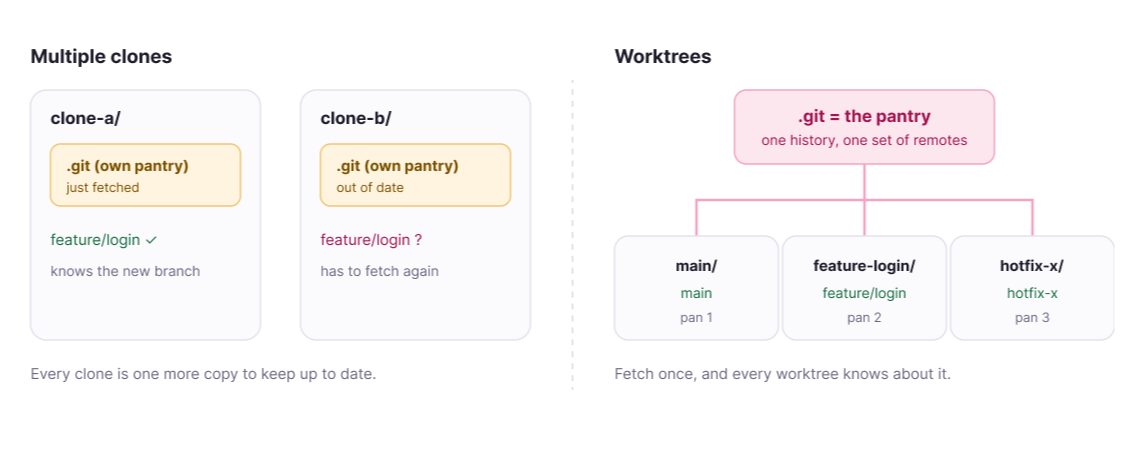
Our goal is to cook with multiple pans. In our world, this means having multiple branches checked out at the same time. And, to be fair, you could always do this. You just need to clone your repository into multiple folders, and each clone could point to a different branch.
So, what's the problem with this approach? Those clones don't talk to each other. If you fetch a new remote branch in folder A, folder B has no idea that branch exists, and you need to fetch it again. And it gets worse with your own work. Commit something in folder A and folder B knows nothing about it. Need to cherry-pick that fix into another branch? You first have to push it, or wire the clones together as remotes. In other words, every clone is one more folder that you need to keep in sync.
Developers felt this pain long before worktrees existed. In fact, back in 2007, Julian Phillips added a script called git-new-workdir to git's contrib folder to create extra working directories that share one repository. It was a clever hack: it simply symlinked the important parts of the .git folder back to the original repo. They're the OGs of git worktrees!
Worktrees are the native and official way of doing this. And that's where the magic is: every worktree shares the same history and remote settings, because they all point to the same git database. Fetch once, and every worktree knows about it. As simple as that.
Back to our kitchen, you can think about it like this:
.git folder) is the pantry.
So, to start cooking, we need a kitchen. How do we create one?
There are two main ways to lay it out.
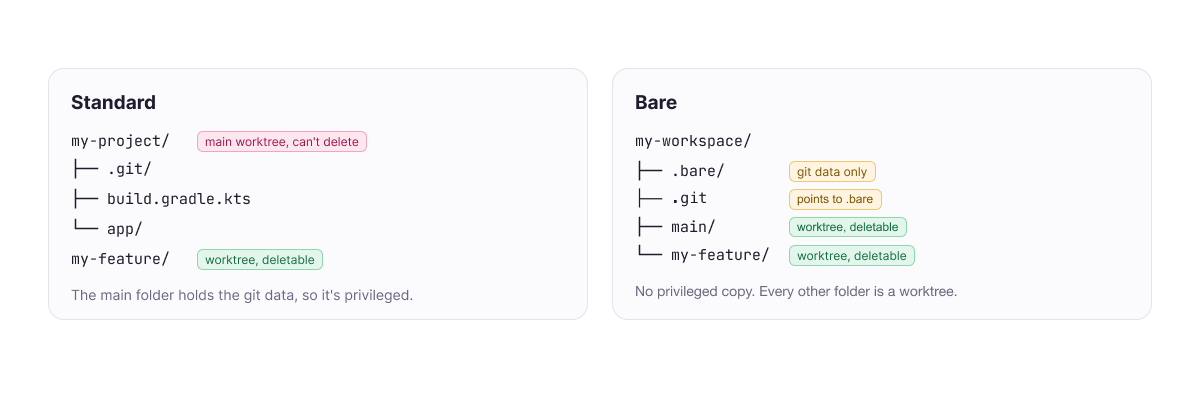
Standard. This is the one everyone knows. You run git clone (or git init), and you get a folder that holds the git data and also the checked-out files.
That folder is called your main or primary worktree, and every worktree you create after it is a linked worktree. As the name suggests, it's linked to the main one, since they all share the same git data.
This works pretty well, but notice that the main worktree is a privileged one. It holds the git data, so you can never delete it, even if you never want to work on that directory.
Bare. This one is not that common, so some of you might not know it. When you clone or init your repo as bare, you get a folder with all the git data and no checked-out files. So, there's no privileged copy. Everything else is a worktree, including the one that points to main, and you can delete any of them (no waste of disk space).
The catch is that it needs a few more steps to set up. If your project already exists:
mkdir my-workspace && cd my-workspace
git clone --bare git@github.com:my-org/my-project.git .bare
echo "gitdir: ./.bare" > .git
git config remote.origin.fetch "+refs/heads/*:refs/remotes/origin/*"
git fetch origin
# A bare clone copies every remote branch as a local one. Drop them,
# so every worktree starts from (and tracks) a fresh origin/ branch.
git for-each-ref --format='delete %(refname)' refs/heads | git update-ref --stdin
git worktree add main main
If you're starting a new project from scratch:
mkdir my-workspace && cd my-workspace
git init --bare .bare
echo "gitdir: ./.bare" > .git
git worktree add main
Then, when you're ready to push, add the remote with git remote add origin <url> and push with git push -u origin main, the same as any other repo.
I use the bare setup myself, and I love how clean it is. That being said, I wouldn't start there. If you're just getting started with worktrees, or you don't mind having one folder that always sits on main, for example, go with the standard one.
I know a lot of people who use worktrees daily but don't really know how to create one manually. And that's totally fine! You can ask an agent to work on a worktree, or use your favourite tool to create one for you.
Nevertheless, personally speaking, I found that understanding the basics and the way worktrees work is the best way to not get lost. And the basics, in this case, are the git commands.
To create a worktree, you just need the worktree add command:
git worktree add <path> -b <branch> <commit-ish>
It receives a path (where your worktree will live in your file system), the branch name with the -b flag if you want to create it, and a commit-ish. A commit-ish is basically anything that points to a commit: a branch name, a tag, a commit hash, whatever.
To be more specific, you would do something like this:
git fetch origin
git worktree add ../my-feature -b my-feature origin/main
Here, we're creating a worktree in a folder called my-feature, on a new branch also called my-feature, based on origin/main. Pretty easy, right?
Note: The same way you would before creating a branch, don't forget to run git fetch first, so your git data is up to date.
Want to test a teammate's branch? Just leave out the -b:
git worktree add ../review-login feature/login
Keep in mind that a branch can only be checked out in one worktree at a time. If git complains, that branch is already open somewhere else. We will see next how you know where.
Now that you know how to create a worktree, it's important to know how to keep your kitchen organised. Remember the nightmare of every chef, or at least every home cook: more pans, more dishes to wash. 🥶
Here are a couple of useful commands to help you with that:
git worktree list
git worktree remove <path>
git worktree prune
git worktree move <worktree> <new-path>
git worktree repair
git worktree lock --reason "on external drive" <worktree>
git worktree unlock <worktree>
list shows all your worktrees and the branch each one is on.remove removes a specific worktree, folder included. Git refuses if there are uncommitted changes or untracked files, so you don't lose work by accident. If you're sure, add --force.prune is useful when you delete a worktree folder by hand. The folder is gone, but git might still reference it. Run prune, and that reference is gone too.move moves a worktree to a new path.repair fixes the references if you moved a worktree folder by hand instead of using move. Just run it from inside the moved folder, or pass it the new path (git worktree repair <new-path>), since git has no way of knowing where it went.lock and unlock are useful for a few reasons. One is protection against accidents, since git refuses to remove or move a locked worktree unless you force it twice, which is hard to do by accident. Another is worktrees that live on an external drive. When the drive isn't mounted, git thinks the worktree is gone, and the next prune cleans up its metadata right away (and garbage collection eventually does too). So, when you plug the drive back in, it's no longer linked. Locking it tells git: it's not gone, it's just not here right now.
So far, all of this looks quite simple and some parts similar to what you're used to. But...
I'm not going to lie to you. When you start using worktrees, it will hurt a little bit. The good news is that once you get used to it and improve your process, you'll cook better than ever.
So, in this section, I'll walk you through the three main pains you'll feel when you start cooking with multiple pans. For each one, I'll share the ideas and principles that help us at Pink Room, plus a few examples. Take them as a starting point, not full recipes. Every kitchen is different.
And every solution I'll give you follows the same idea: do it once, and never think about it again.
This is probably the first pain you'll feel. Let me give you an example.
You want to start a new ticket. You create a new worktree pointing to a fresh new branch, you build your app and... it fails. Why? 🤔
Because a new worktree is a fresh checkout. This means that everything git ignores is not there. Basically, everything you set up once when you first init or clone the project, and then forgot about. Now, you need to do it per worktree.
In a kitchen, this has a name: mise en place. Before cooking, every ingredient and tool is prepped and ready to go. And every new worktree needs the same.
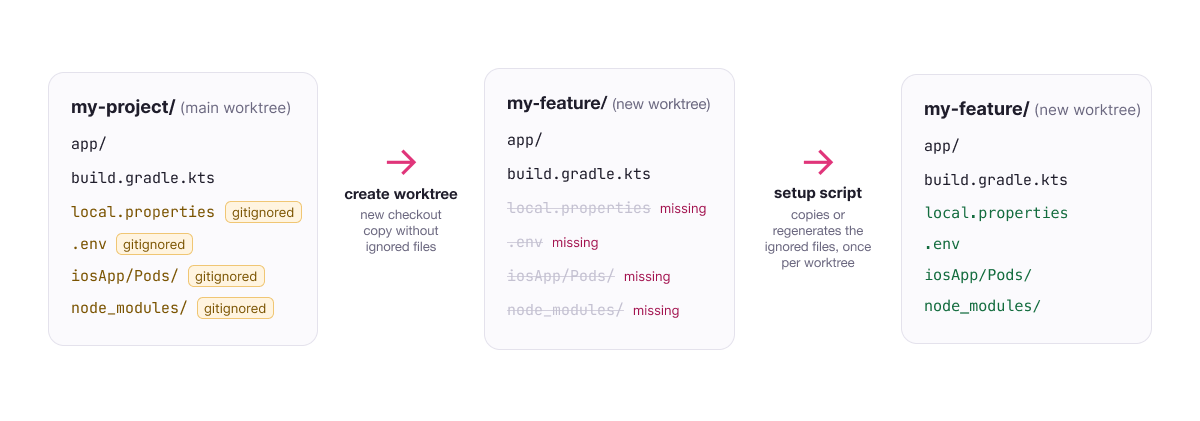
So, how do we solve this? If you use a tool to create your worktrees, it might already have a solution for you. Some tools let you run a script after a worktree is created, others let you define a list of files and folders to copy into every new worktree. If yours doesn't, you can always write a small script and run it manually, or from a post-checkout git hook. That hook runs after git worktree add, but also after every regular checkout, so make sure your script only does its thing on new worktrees. As an example:
#!/usr/bin/env bash
# Run from inside a new worktree, by hand or as a post-checkout hook.
set -euo pipefail

# As a post-checkout hook, only run on `git worktree add`,
# where the previous HEAD is all zeros. Run by hand, there are no arguments.
[[ "${1:-0}" =~ ^0+$ ]] || exit 0

# Where your untracked local files live. This depends on your setup:
# your main worktree, the root of a bare workspace, a shared folder...
src="$HOME/dev/my-project"

for file in local.properties .env iosApp/Secrets.xcconfig; do
  if [ -f "$src/$file" ]; then
    cp "$src/$file" "$file"
  else
    echo "warning: $src/$file not found, skipping" >&2
  fi
done
What goes into that list depends on your platform:
local.properties, which usually holds your SDK path and local keys, plus any google-services.json or signing config that you keep out of git..xcconfig files. Pods aren't committed either, so run pod install in each new worktree..env files. And since node_modules isn't shared, run npm ci (or your package manager's equivalent) in each new worktree.
One pan is easy to watch. Five pans on five burners? That's a different story.
This one is probably the most relevant pain. It's where I think people start rethinking the decisions of their lives and give up. 😅
Before worktrees, we only had one working directory. One folder, one terminal, one IDE, one agent session. All of them pointed at the same folder, and you never thought too much about it.
Now, you have multiple working directories, and each one might need all of that. Multiple folders, multiple terminals, multiple editors, multiple agent sessions, all pointing to different places. And you need to manage it.
So, how do we solve this? Think about a restaurant kitchen during rush hour. Things only go well when the kitchen is clean and organised, and the processes are good. The moment that breaks, orders get lost, and food gets burnt. With worktrees, it's exactly the same.
That's why I treat a worktree as a whole context, not just a folder. When I start working on a worktree, I open everything that belongs to it together: the folder, the shell, the agents, the IDE, the browser tabs, etc. And when I'm done, I close all of them together too. Some things, like the emulator, might be shared. More on that in a bit.
How you do this really depends on your tools and process. Some tools already group everything per worktree for you. If yours don't, you can create scripts or plugins to automate and organise every part of the process. It's a very personal setup, and yours will probably look different. That's fine. But remember the rule: do it once, and never think about it again. 😎
When we do this halfway, that's when the drift starts, and we get lost. You start prompting an agent about a bug, and only a few minutes later realise it's pointing to another worktree and changing the wrong code. Or you spend ten minutes reviewing a change in your editor, wondering why it isn't there, until you notice you're looking at the wrong worktree.
We all know that person who piles every dessert onto the same plate, because "it all ends up in the same place anyway". For them, it's fine. For any chef, it's a crime. 😅
And that's exactly what happens when we start working in parallel. Worktrees separate your code, but not your machine. Your ports, your emulator, and the apps installed on it are still shared. And when they mix, it usually doesn't fail loudly. You just end up looking at the wrong code.
I felt this one on my last project, a React Native app. Every worktree needed its own Metro running. But Metro uses port 8081 by default, so the second one can't start. Or worse, your app connects to the Metro of another worktree, and you spend a few minutes wondering why your change isn't there. 🙄
So, how do we solve this? Give every dessert its own plate. In this case, a port per worktree, derived from the folder name, so you never need to pick one. An example for this specific case:
# Same folder, same port. Different folders, different ports.
export RCT_METRO_PORT=$((8100 + $(basename "$PWD" | cksum | cut -d' ' -f1) % 900))
npx react-native start --port "$RCT_METRO_PORT"
run-android and run-ios read RCT_METRO_PORT too, so the app knows where to find its own Metro, as long as the variable is set in that shell as well. My setup does this for me, and I never think about it again. And the same idea works for any dev server, for example.
The emulator is a bit different. Running one per worktree would eat all your RAM, so I typically share one. But if all your worktrees install the same app, each install replaces the previous one. Another problem is when agents check their work on the emulator: one agent installs its build, another one installs over it, and the first one ends up verifying code that isn't even its own.
Luckily, almost all of us have already solved a similar problem when we wanted to run a staging and a production app side by side. Here, it's the same trick: give each worktree its own app ID and name, derived from the folder name as well. Then, all of them live on the same emulator, and each agent opens its own app.
There's one thing you can't split, though: the screen. Only one app is in the foreground at a time, so if two agents want to check something at the same time, they need to take turns. Or you pay for a second emulator.
Another option is to take some of the cooking out of your kitchen. More and more, agents can run in the cloud, each one with its own environment and its own emulator or device. Then, your machine stops being the bottleneck. It's not free, and it takes some work to set up, but that's where I see this going.
Take that idea far enough, and your kitchen starts to look a lot more like a factory. But software factories deserve a post of their own, so I'll save that recipe for another day. Until then, every chef burns a few fingers, remember? 😅
At the end of the day, I have three rules that make my life easy while using worktrees.
1 ticket, 1 worktree. All the work I do now lives inside a worktree. There's no such thing as "let me just checkout branch X". Checking out a branch now means creating a worktree, or navigating to the one that already points to that branch. Always, with no exceptions.
1 worktree, 1 context. As we discussed before, everything related to a piece of work (shells, agents, etc.) is tied together. I keep them organised and working as a unit.
1 project, ∞ automations. Your workflow is now more complex, and that's fine. But you need to make sure that every step you repeat every single time is automated.
If there's something I'd like you to remember from this post, it's this:
So, next time someone runs into your kitchen asking for an omelette, you don't need to dump your risotto. Just grab another pan. 😎
And don't forget, a software engineer without git worktrees is like a chef with only one pan.
If you're interested in discussing mobile development or need help building a mobile product, Pink Room is here to help. Connect with us on LinkedIn.